VM iGPU Passthrough
Working setup
The following shows the versions that are known to be working at the time of writing:
| Hardware | Host | Guest |
|---|---|---|
| Bosgame M5 AXB35-02 SixUnited BIOS 1.07 |
Proxmox 9.1 Kernel 6.17.4-1-pve |
CachyOS Kernel Linux 6.18.2-3-cachyos Mesa Mesa 25.3.2-arch1.2 Vulkan 1.4.335 |
CachyOS is not necessarily needed, but it's a convenient way to get a rolling distro in a friendly way. Once you've got it working, it's much easier to know if it's a guest issue.
Setting Up
There are various guides out there, but the following gives precise instructions that result in a confirmed working setup with iGPU passthrough.
- Install Proxmox 9.1 and run an apt dist-upgrade after installing. Ensure you have kernel 6.17.4 or later
- Setup the following config
# /etc/kernel/cmdline
... initcall_blacklist=sysfb_init
# /etc/modprobe.d/pve-blacklist.conf
blacklist radeon
blacklist amdgpu
blacklist snd_hda_intel
# /etc/modprobe.d/vfio.conf
options vfio-pci ids=1002:1586,1002:1640 disable_vga=1
Create a VM. Settings don't matter too much for now, but ensure the following:
- 32GB memory, no baloon
- 'host' setting on CPU arch
- q35 machine
- Use the latest CachyOS desktop ISO
Do NOT yet try to passthrough any devices
Boot the VM and install Cachy via the Proxmox console.
Open a shell within Cachy and type "update", to get the latest.
Edit the config of vi /etc/pve/qemu-server/100.conf and add these lines, but making sure the devices match the output of lspci on your particular machine:
hostpci0: 0000:c5:00.0,pcie=1,romfile=vbios.bin,x-vga=1
hostpci1: 0000:c5:00.1,pcie=1,rombar=0
hostpci3: 0000:c5:00.4,pcie=1,rombar=0
Note that the last one is a USB controller - you'll need to plugin a keyboard and mouse initially. Also not that you do not need a BIOS for the audio device.
- Extract your own VBIOS according to https://github.com/isc30/ryzen-gpu-passthrough-proxmox?tab=readme-ov-file#configuring-the-gpu-in-the-windows-vm. There's no guarantee someone else's VBIOS will work for you.
After that, you should now be able to start the VM, and CachyOS will show up on your monitor.
USB passthrough
As noted above, in order to use a desktop environment, you can passthrough a USB controller. On the Bosgame M5, the USB controller in the same group as the iGPU is the physical USB 3 port at the back, next to the power supply connector. It might not start with "5"
Proxmox VM:
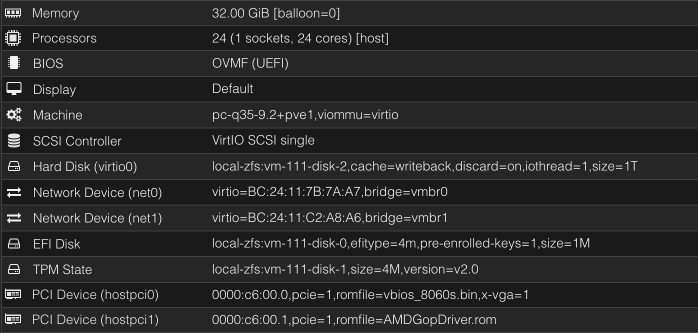
Windows VMs
- hardware IDs are
1002:1586(iGPU) and1002:1640(audio) - the 'reset bug' is here, I found no way to avoid it, so you can passthrough the iGPU to a Windows guest only once per boot of the host
- don't bother with
vendor-resetmodule and/orRadeonResetBugFixservice, they are severely outdated and don't do anything in our case - if your VM crashes during GPU driver install, switch the CPU type to something generic (
x86-64-v4for example seems to work fine), install the driver, then return it back tohost - if you see unknown PCI device (
1af4:1057) in your Device Manager, installviomemdriver manually from virtio drivers ISO - set the fixed VRAM amount in the BIOS and never change it on the OS level, otherwise expect major slowdowns and crashes
- this issue might be worth looking into
Linux VMs
- the guide and configuration are valid for Linux too
- Proxmox 9 seems to be a must to avoid the reset bug
- use recent kernels (6.15+), if you see amdgpu driver errors during boot most likely your kernel is too old
- just like with Windows, dynamic VRAM allocation seems to be very unstable, set the fixed amount in the BIOS
Additional Info (Discord)
- my personal experience and why I gave up on the idea of the iGPU passthrough
- a discussion thread with additional links for LXC passthrough
Forums
The following forums can help with Proxmox and passthrough issues in general:
Reddit
- https://www.reddit.com/r/Proxmox/
- https://www.reddit.com/r/VFIO/ ("VFIO" stands for "Virtual Function I/O", and is the tech behind hardware pasthrough)
Proxmox https://forum.proxmox.com
Other guides
This guide seems to work for Strix Halo:
https://github.com/isc30/ryzen-gpu-passthrough-proxmox
There's also a guide from a Framework Desktop owner available here:
https://community.frame.work/t/anyone-using-proxmox-ve/74863/6?u=beralt
Files
(taken from EVO-X2, BIOS version 1.04)
Created 2025-11-29 15:40:33 by deseven.